Word Blocked Macros
When you encounter error messages about "Word blocked macros" in Microsoft Word, it typically means that Word's security settings are preventing the execution of macros in your document to protect your computer from potentially harmful code. Macros can be used for legitimate purposes, but they can also be used to deliver malicious code, so Word takes precautions to block them by default.

Here are steps to address this issue:
1. **Enable Macros**: If you trust the document and the source it came from, and you know that it contains macros you want to run, you can enable macros temporarily or permanently. Keep in mind that enabling macros from untrusted sources can be risky, so only do this with documents you trust.
  - Open the document that contains the blocked macros.
  - You will likely see a security warning at the top of the document, saying that macros are disabled. Click "Enable Content" or a similar button in the warning message. This will enable the macros for this session.
2. **Change Macro Security Settings**:
  - If you frequently work with trusted documents containing macros, you can lower the macro security settings in Word.
  - In Word, go to `File > Options > Trust Center > Trust Center Settings`.
  - Click on "Macro Settings" and choose a lower security level. However, be cautious when doing this, as it will make your system more vulnerable to potential threats.
3. **Digitally Sign Macros**: If you create macros yourself and want to make them easier to use without triggering security warnings, you can digitally sign them with a trusted certificate. This proves that the macros are from a trusted source.
  - You can create a digital certificate or purchase one from a trusted certificate authority (CA).
  - Sign your macros with the certificate when you create them. To do this, go to `Developer > Visual Basic for Applications`, right-click on the project, choose "Properties," and sign the project with your certificate.
4. **Use Trusted Locations**: You can specify trusted locations in Word where documents with macros are allowed to run without security warnings. This is a safer way to work with macros.
  - In Word, go to `File > Options > Trust Center > Trust Center Settings`.
  - Click on "Trusted Locations" and add folders or network locations that you trust.
5. **Antivirus and Anti-Malware**: Make sure you have updated and active antivirus and anti-malware software on your computer to provide an additional layer of protection against malicious macros.
6. **Copy the developer certificate into the Trusted Root Certification Authorities folder.
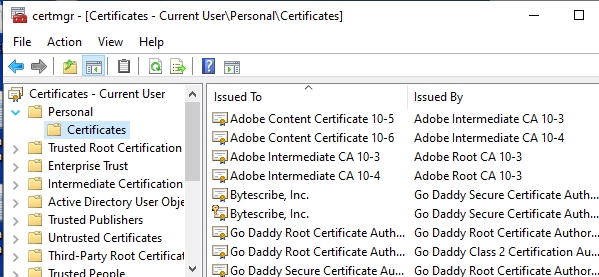
  - Start 'certmgr.msc' (right-click Start, click Run, enter 'certmgr.msc', click OK). The following window will appear.
  - Expand Personal folder and click on Certificates (Step 1).
  - Right-click on the certificate that was created by the developer/user and click Copy (Step 2).
  - Expand Trusted Root Certificate folder, right-click on Certificate folder and click Paste (Step 3).
  - Close certmgr.msc.

Remember that enabling macros should be done cautiously and only for documents from trusted sources. Be vigilant about the documents you open and the macros you enable to protect your computer from potential threats.